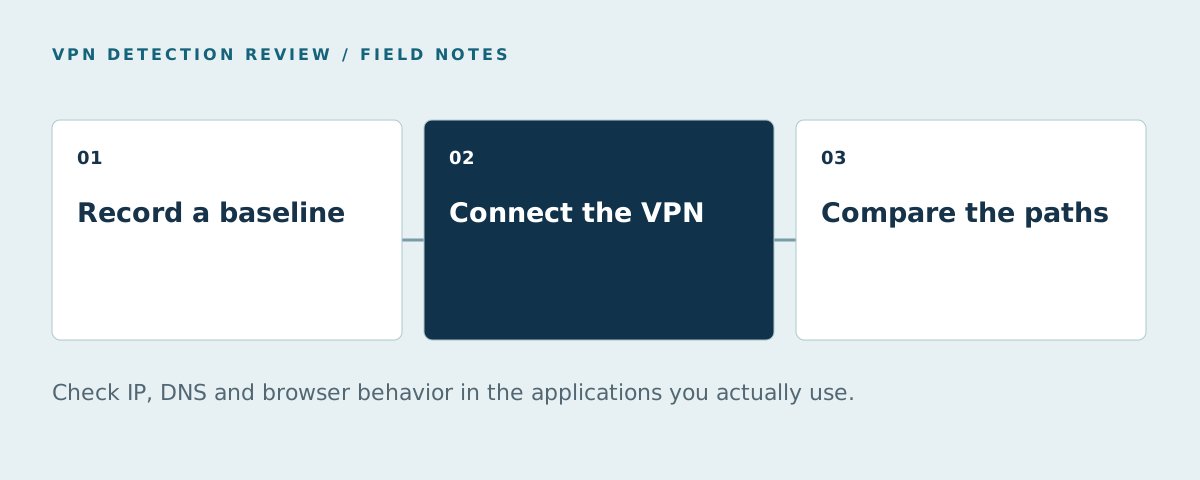
To check if your VPN is working, compare your public connection with the VPN disconnected and connected, then inspect the browser and applications you intend to protect. Test IPv4 and IPv6, review DNS behavior and check for unintended WebRTC address exposure. Repeat after a network change or reconnection.
A VPN app's “connected” indicator reports its state. A website's VPN label describes the connection it sees. This checklist helps you compare both with the traffic path you intended.
If your question is broader than the route, the anonymity check explainer separates network labels from browser fingerprinting and account identity.
Which VPN checkers can you open now?
Use the ShieldLabs Anonymity Checker for network, browser and risk context, or the Fingerprint VPN demo to repeat a regional-pricing action with the VPN off and on. For an IP-based check, try IPQS, IPinfo, proxycheck.io, vpnapi.io, IPHub, IP2Location or Abstract's VPN detector. Public usage limits and available fields differ.
MaxMind's GeoIP preview helps inspect location and network data, but does not expose every field in its full datasets. The side-by-side test-options table records those differences. A VPN classification checker is one part of this checklist; it does not establish how every application routes traffic or replace a DNS/WebRTC-specific test.
The vpnapi.io explanatory guide describes checking the visible exit IP. Abstract's best-tools article adds evaluation questions for coverage, false positives, latency and cost. Those are useful buying criteria when interpreting a public test; verify individual plan figures on the relevant vendor's own product pages.
How to check if your VPN is working: start with the public IP
Before connecting the VPN, note the public address visible to a trusted IP-check service, the approximate network location and the network provider. Record the time, browser and network you are using. Keep these details private; they are a test record, not something you need to post publicly.
Connect the VPN and repeat the same observation in the same browser. Compare the results with the provider's expected exit. An address change supports the conclusion that this request took a different route. It does not prove that every application or every protocol on the device used that route.
Use a small worksheet:
| Check | VPN disconnected | VPN connected |
|---|---|---|
| Public IPv4 | Record observed address | Compare with expected exit |
| Public IPv6, if present | Record observed address | Verify the intended route or handling |
| Browser used | Record name and version | Repeat in that browser |
| Application tested | Record the actual app | Confirm its own connection behavior |
| Network | Wi-Fi, mobile or other | Retest after changing it |
This is a suggested checklist, not an automated test running on this page. Your VPN provider's documentation should define the expected configuration for the device and applications involved.
Check application coverage and split tunneling
Some VPN products allow selected applications to use the tunnel while others connect directly. Mozilla's split-tunneling documentation describes this distinction. A browser test cannot establish the path of an excluded desktop application.
Review whether your setup uses a device-level VPN, an application rule or a browser extension. Then test the applications you actually care about. If one browser shows a different address from another, first investigate configuration differences rather than assuming the entire VPN is broken.
Keep exceptions visible in the test record. An intentionally excluded application is different from traffic unexpectedly escaping a policy. If your purpose is to cover all relevant applications, compare the configured coverage against that requirement.
Test IPv4 and IPv6 separately
An IPv4 result does not settle how IPv6 traffic is routed. RFC 7359 discusses VPN leakage risks in dual-stack environments and the importance of applying the intended policy across interfaces and address families.
Check how the provider says it handles IPv6 on your platform. Some configurations may route it through the tunnel; others may intentionally disable or restrict it. Compare what you observe with the documented behavior rather than assuming a specific implementation is universal.
If a test reports an unexpected address, confirm the address family, application and current network. Repeat the same request after reconnecting. That produces a more useful support report than a screenshot of a location pin with no information about how the result was obtained.
Understand the DNS result before calling it a leak
DNS translates a name into an address. The resolver used by a browser can be configured separately from the rest of its network path. For example, Firefox supports DNS over HTTPS, which can affect which resolver a browser test observes.
Record the resolver and compare it with your intended configuration. A resolver name that differs from the VPN brand does not by itself prove that your original public IP was exposed to the destination website. Conversely, a changed public IP does not describe every DNS request made by every app.
If the result is unexpected, check the VPN's DNS settings, the browser's DNS mode and any network policy applied to the device. Test one change at a time so you can explain why the result changed.
Interpret WebRTC and browser tests correctly
WebRTC supports browser communication and has its own address-handling considerations. RFC 8828 describes requirements for this behavior. When a test displays an address, determine whether it is a private local address, the VPN exit or another publicly routable address.
A private address on a local network is not the same thing as the public originating address your ISP assigns. A useful test explains the distinction and records how the address was collected. Browser privacy settings can also change which information is available.
Browser tracking is another separate issue. The EFF's Cover Your Tracks evaluates browser tracking characteristics. Use that type of test for its stated purpose rather than reading it as proof that all network traffic is tunneled. A VPN can change a route while an account login or browser characteristics still connect activity.
Repeat when the connection changes
Reconnect, switch from Wi-Fi to mobile or repeat after the device wakes if those transitions matter to your use. Record any unexpected difference and compare it with the provider's intended reconnect behavior.
For a work-managed device, check with the administrator before changing network configuration. A corporate gateway, browser policy or required application exception may explain an observation. The goal is to verify your intended path, not to make all configurations look identical.
When seeking support, provide the platform, app version, approximate test time, address family and the observed difference. Send sensitive connection details through the provider's support channel rather than a public comment thread.
Why can a website still detect the VPN?
A working tunnel can exit through an address that a website recognizes as a VPN. Network detection and traffic protection are separate tests. A detected exit does not establish that the encryption failed or that the website recovered the original address.
For website operators, our detection-method guide explains how network data, browser context and history are used. ShieldLabs combines live VPN and proxy checks with visitor, user, device and IP risk scoring and account-level abuse detection. Its place in a fraud workflow is different from a consumer VPN connectivity test.
FAQ
Do free demo results include every paid API field?
Check the demo and production plan separately. Fingerprint's pricing lists a free identification allowance and a Pro Plus trial; ongoing web Smart Signals are on Pro Plus. IPHub puts residential-proxy detection on Professional. A public lookup can help inspect output without granting every production field.
Am I using a VPN if my public IP changed?
An address change is evidence that the observed connection changed. Confirm the VPN application's state and the intended exit, then test the applications and address families you need. A changed address alone does not describe the whole device.
Does a VPN checker prove that my traffic is encrypted?
An IP or VPN classification page reports what it can observe about the connection. It does not inspect every application's traffic or audit the tunnel implementation. Use your provider's supported diagnostic procedure for that question.
Is Private Relay the same as a device-wide VPN?
Apple describes Private Relay's supported traffic and relay design. Check its documented scope rather than assuming that every application on the device uses the same path. Your test needs to match the application being checked.
Sources
Sources checked October 20, 2026.
- Fingerprint plan and Smart Signals access.
- Mozilla: DNS over HTTPS.
- RFC 7359: VPN traffic leakages.
- RFC 8828: WebRTC IP address handling.
- EFF: Cover Your Tracks.
- Apple: about Private Relay.
- ShieldLabs Anonymity Checker. Checked October 20, 2026.
- Fingerprint VPN demo. Checked October 20, 2026.
- IPQS. Checked October 20, 2026.
- IPinfo. Checked October 20, 2026.
- proxycheck.io. Checked October 20, 2026.
- vpnapi.io. Checked October 20, 2026.
- IPHub. Checked October 20, 2026.
- IP2Location. Checked October 20, 2026.
- Abstract's VPN detector. Checked October 20, 2026.
- MaxMind's GeoIP preview. Checked October 20, 2026.
- Abstract's best-tools article. Checked October 20, 2026.